USB-C Docking Station and Laptop Stand Review
I reviewed this 11-in-1 USB-C docking station and laptop stand. Here's what it does, what surprised me, and whether it's worth your desk space.

Reviewed by
Seb and Michelle
We've tested over 6,500 products in the last 5 years – collaborating with over 4,000 brands and bringing our style of reviews to multiple platforms. More about me →
This post contains affiliate links. I may earn a commission at no extra cost to you.
Quick Verdict
This 11-in-1 USB-C docking station is, obviously, way more than just a hub. It’s a laptop stand, an ergonomic riser, and a full peripheral expansion bar all in one — and the fact that a single cable from the wall powers everything connected to it is the kind of thing that makes you wonder why you put up with cable chaos for so long. I think this thing is fantastic, and the build quality backs that up. Check the current price on Amazon right here.
Buy if you:
- Work on a laptop daily and need hardwired peripherals, not just Bluetooth
- Want to connect two 4K monitors simultaneously via HDMI
- Need adjustable height for proper ergonomic positioning at your desk
- Travel with your setup and want something that folds flat and packs easy
Skip if you:
- Already have a dedicated docking station and just want a basic stand
- Prefer a completely wireless desk with no cable runs at all
- Don’t need more than one or two extra ports on your current setup
Clicking takes you to the seller's website. We may earn a small commission if you purchase, at no extra cost to you.
The USB-C Laptop Stand Docking Station Revolution
I work with my laptop every single day. It’s usually on a flat surface and, as you guys know, I’m constantly missing out on connections I actually need. Bluetooth and Wi-Fi are fine for some things, but I need to be able to connect things hardwired. That’s just how I work. So, obviously, peripherals — I’m addicted to them. And when I came across this 11-in-1 USB-C docking station and laptop stand, the first thing I noticed is that it does a lot more than just add periphery. A lot more.
Most hubs sit flat on your desk and solve the port problem. This one solves the port problem AND your posture at the same time. That combination is what got my attention immediately.
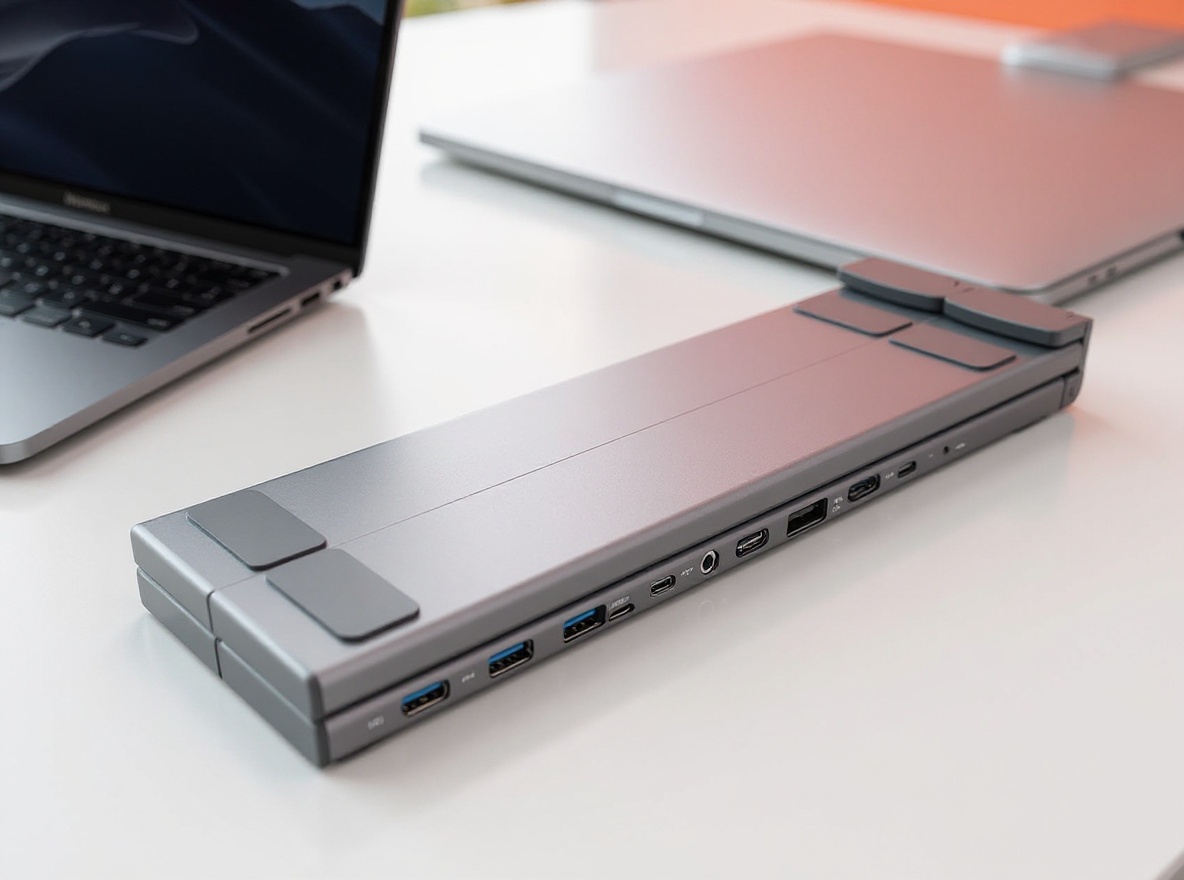
The design is clean. Like, genuinely well thought out. You’ve got these little pads that your laptop rests on along the top ridge, and these small feet at the base that support it from underneath when you raise it up. Just that is already really nice. But then you realize there are multiple increments you can set it to — different height levels so you can dial in the angle that works for your neck, your posture, your setup. In my case, I locked in the angle I like for proper ergonomics and it just stayed there.
Look — not everyone likes the same angle. That’s the whole point of having the adjustable levels. Some people want it high. Some people want a shallower incline. You can set it exactly how you want it, and it holds.
Everything This Bar Packs In
So let’s talk about what’s on the bar itself, because this is where it gets interesting. The whole thing is powered by a single cable. You grab the one labeled “PC In,” plug it into your laptop’s USB-C port, and everything connected to the station draws power from the wall through that one connection. The entire bar becomes powered. That means the devices you plug into it — hard drives, monitors, peripherals — all get power and data throughput running simultaneously without any extra mess.
Here’s what’s on the bar:
You’ve got USB-C 3.1, which runs at 5 Gbps file transfer speed. So a hardwired external drive connected here gets both its data signal and its power through the docking station — no separate power brick needed for the drive. That’s a really nice thing.
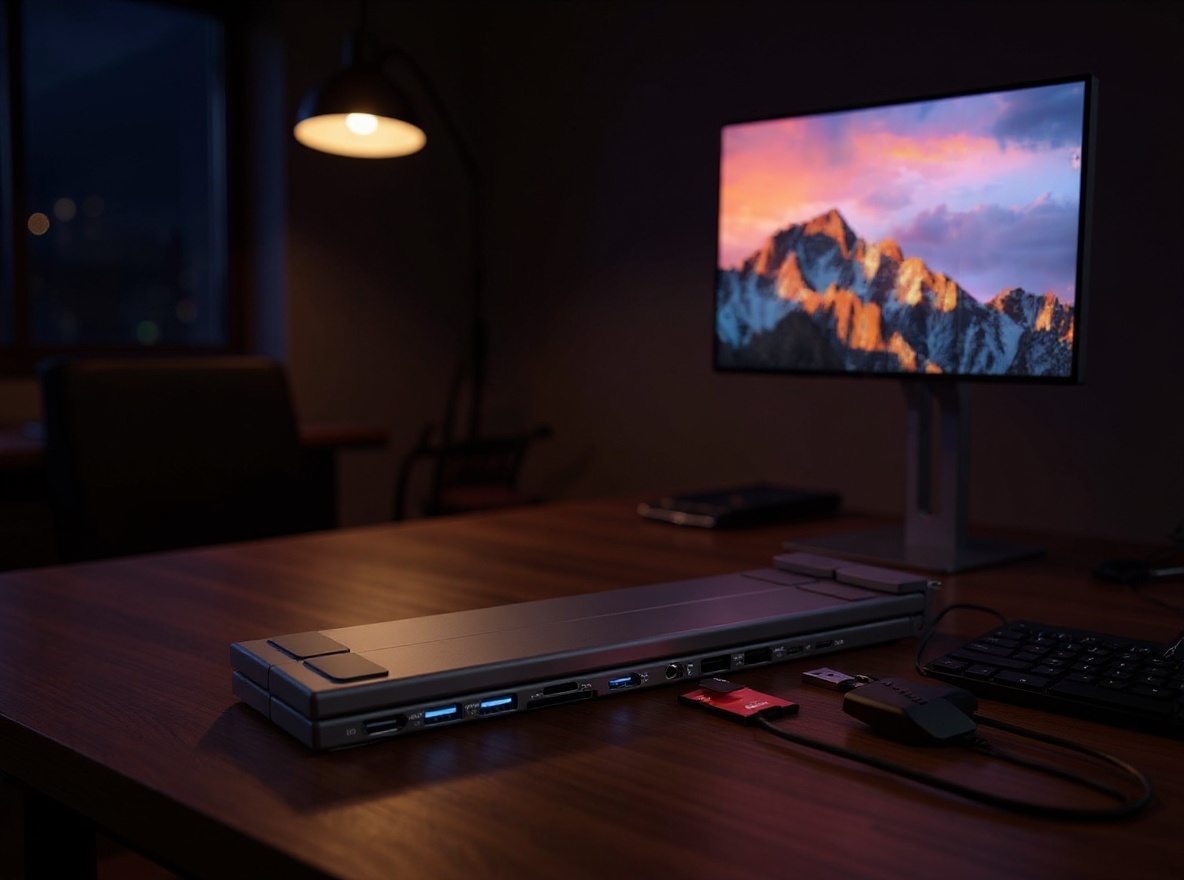
There’s a standard SD card slot and a micro SD card slot. Two USB-A ports with file transfer speeds that are, and I’ll say it directly, through the roof. And then the thing that surprised me most when I got into it: two HDMI ports. Two. That means you can connect two separate 4K monitors at the same time. Both get signal throughput. Both get power delivery where applicable. For a monitor that has its own power source, it’s going to work right alongside it. For monitors that can pull power through HDMI, they’re sorted too.
The laptop size range this accommodates goes from 10 inches all the way up to 17 inches. So whether you’re running a compact machine or a full-size pro laptop, it fits. And yes — if you’ve got a tablet or an iPad you want to prop up and use with peripherals, this works for that too.
The Single-Cable Setup That Changes Everything
Here’s the part I keep coming back to. Most people think about docking stations as “I plug some stuff in and it works.” But the way this is designed — where the power comes in through one cable, and that single connection then powers the entire bar — changes how your desk actually functions.
Before, if I had a hard drive, two monitors, a keyboard, and a mouse all trying to run at once, I was managing a tangle of cables and dongles and half-powered devices that sometimes needed their own adapters. Here, you run one cable from the wall into the power input. That’s it. The bar handles everything downstream.
I showed this live — plugged in the PC cable, watched the whole station come alive, then connected devices one at a time. Hard drive: powered and transferring. HDMI monitors: getting signal. All of it running off that single connection point. The setup is so clean it almost doesn’t feel real at first.
And because it folds flat — the whole stand folds into itself — this is also genuinely portable. It doesn’t feel like travel gear. It feels like desk gear that happens to be easy to pack. So cool.
The Dual HDMI Detail Nobody Talks About
I said it in the review and I’ll say it again here because it’s the kind of thing that gets buried in spec sheets: two HDMI outputs on a laptop stand. That’s not normal. Most stands in this category are purely mechanical — they hold your laptop up and that’s the end of the conversation. This one extends your display setup at the same time.
When you’re extending to two 4K monitors, you’re running a full multi-display workstation off a single laptop. No separate hub needed. No extra dongle sitting on the desk. The stand IS the hub. I think that’s fantastic — and I don’t say that lightly. The fact that you can add that level of functionality, that many peripherals, to a computer that didn’t come with these ports built in, all while having your laptop at a comfortable eye-level angle, is genuinely impressive engineering for this price point.
A lot of the 4K monitors people are running these days have their own dedicated power source. That works fine alongside this setup. The throughput still goes through the bar. You’re not giving anything up.
Learn more
11-in-1 USB-C Laptop Stand Dock
Get the best price today →This post contains affiliate links. I may earn a commission at no extra cost to you.

Who Actually Needs This on Their Desk
If you work from a laptop eight or more hours a day, this is a no-brainer. You’re already in the market for either a docking station or a laptop stand — this gives you both. The ergonomic angle alone justifies the desk space it takes up. Your neck will tell you pretty quickly whether you’ve been working at the right height or not.
For anyone running a multi-monitor setup off a MacBook or Windows laptop, this is especially worth looking at. I’m a little biased with the whole MacBook look because it does fit really well aesthetically, but let’s be real — it works with a lot of laptops, not just MacBooks. Any machine in that 10-to-17-inch range is going to sit on here without a problem.
It’s also solid for people who move between home and office, or home and a coworking space. The fold-flat design means you pick it up, tuck it in your bag, and your entire workstation setup travels with you. Not a lot of docking stations do that gracefully.
For people who run tablets as productivity devices — iPads especially — this works as a stand for those too. You don’t need a laptop. If you want to prop up your tablet at a good viewing angle and connect peripherals to it, this handles that.
Where it makes less sense: if your workflow is fully wireless and you’ve got zero interest in connecting external drives, monitors, or wired peripherals. Or if you’re already running a high-end dedicated docking station with a separate stand. In that case, you’d be doubling up on functionality you’ve already paid for.
Versus the Standalone Hub + Basic Stand Combo
The most common alternative to something like this is buying a USB-C hub separately and pairing it with a basic laptop stand. And on paper, that sounds reasonable. You shop for each piece individually, optimize for what you need, done.
But here’s what that setup ends up looking like in practice: a stand that does nothing except hold your laptop, sitting next to a hub that has its own cable run, potentially its own power brick, taking up additional desk space, and creating the exact type of cable clutter you were trying to solve. You’ve got two objects doing the job of one, and neither of them are as clean-looking as this.
The 11-in-1 integrated approach gives you USB-C 3.1, dual HDMI, SD and micro SD slots, USB-A ports, and adjustable stand functionality in a single unit that runs off one cable from the wall. That’s a harder thing to compete with when you price it out separately. And the portability factor — a standalone hub plus stand isn’t folding flat and fitting cleanly in a bag the same way this does.
The only real win for the separate-piece approach is if you want a premium stand with specific aesthetic requirements, or if you need port types this bar doesn’t include. Otherwise, the combo unit wins on simplicity every time.
Setup Tips Before You Start Using It
Grab the cable labeled “PC In” first. That’s your primary connection — it’s what goes from the docking station to your laptop’s USB-C port. Once that’s in, plug the power cable into the wall and into the power input on the station. That’s the order that makes sense. Power in first, then devices.
Set your height before you put the laptop on. The stand has multiple adjustable increments and it’s easier to dial in the angle you want without the weight of the laptop on it. Find the ergonomic position that works for your eye level, lock it in, then place the machine.
If you’re connecting two HDMI monitors, check whether they have their own power supplies first. Most 4K monitors do. That’s not a problem — they’ll still get their display signal through this bar. The power delivery on the monitors just comes from their own brick in that scenario.
And if you want to use it flat — no stand angle, just the peripheral bar functionality — that’s a completely valid setup. You can keep your laptop at desk level and still have all the port expansion running. The stand and the hub functions are independent of each other in that sense.
One last thing: if you’re using this with a tablet or iPad, just know the stand accommodates a wide size range. It’s not a laptop-only device. That flexibility is worth keeping in mind if your daily setup changes depending on the day.
Frequently Asked Questions
Does this docking station work with Windows laptops or just MacBooks?
It works with both — any laptop from 10 inches to 17 inches fits on the stand, and the USB-C connection is universal. I mentioned in my review that I’m a little biased toward the MacBook look because the aesthetic matches well, but let’s be real, it fits with a lot of laptops beyond just Apple machines.
Can it really power two 4K monitors at the same time?
Yes, there are two HDMI outputs on the bar and both get throughput when the station is powered. Monitors with their own power source will still receive their display signal through this. Monitors that can pull power via HDMI will be handled by the station’s power delivery as well.
What’s the file transfer speed on the USB-C port?
The USB-C 3.1 port runs at 5 Gbps transfer speed. So if you’ve got an external hard drive connected to it, you’re getting fast data throughput plus power delivery to the drive through the same connection. No extra power adapter needed for the drive.
Is this portable enough to travel with?
It folds flat into itself, which makes it genuinely easy to pack. It’s not a bulky unit — this is designed to go with you. If you move between a home office and another workspace, this is built for that.
Can I use this without raising my laptop — just for the ports?
Yes. You can keep the laptop flat on your desk and still use all the port functionality from the bar. The stand and the hub features operate independently — you don’t need to raise the laptop to get the connectivity benefits.
Related reviews
- GiGi Facial Wax Strips Review
- Gasbye 95kPa Vacuum Sealer: Keep Food Fresh?
- Silicone Pet Feeding Mat Review
Does it work with iPads or tablets?
It does. The stand accommodates a wide size range and isn’t laptop-exclusive. If you want to prop up a tablet and connect peripherals to it, this handles that setup as well.
Learn more
11-in-1 USB-C Laptop Stand Dock
Get the best price today →This post contains affiliate links. I may earn a commission at no extra cost to you.
About the reviewer
Seb and Michelle
We've tested over 6,500 products in the last 5 years - collaborating with over 4,000 brands and bringing our style of reviews to multiple platforms.